InkLedger
Demo soon

For print and copy shops

Know what's waiting, who hasn't paid, and what's in the drawer.

InkLedger keeps a print shop's jobs and cash on one screen. Taking a walk-in job is quicker than writing it in the notebook, and nothing gets lost in a WhatsApp chat.

Demo coming soonSee what it does

A sample shop you can try for two hours, with no password.

  • Runs in the browser
  • Prices in your shop's currency
  • Shortcuts work on any keyboard layout

Four problems it's built to solve.

Not a till and not an accounting package. A tracker for the jobs and the cash in a small shop where everyone does everything.

No. 01Losing track of jobs

A file sent on WhatsApp is forgotten.

Every job goes on the queue when it's taken, at the counter or from a chat. Anyone in the shop can see what's waiting and what's ready without asking.

Pending3
In progress2
Ready2
On the board7
No. 02Unpaid and uncollected

It's printed, and nobody comes for it.

Ready jobs wait on their own list, with what each customer still owes. When they come in, the ticket is paid and closed from the keyboard.

Lina HaddadSYP 48Unpaid
Al-Nour Primary SchoolSYP 720Unpaid
Still owedSYP 768
No. 03The day's cash

Nobody knows what's in the drawer.

The cash taken today, and who took it, is added up from the tickets as they're paid. Closing up means checking a number, not finding one.

Taken by RamiSYP 1,315
Taken by MayaSYP 685
Cash taken todaySYP 2,000
No. 04Supplies running out

The paper runs out at noon.

Whatever is running low is listed on the dashboard, so the paper and the toner are bought in the morning and not in the middle of a school's order.

Running low
Black tonerOut of stock
Paper A4300 sheets left
Spiral coils40 left

Quicker than writing it in the notebook.

The counter is built for the keyboard. A walk-in job is a handful of keys, and the shortcuts work whatever keyboard layout is switched on.

  1. F3Print job
  2. 20Tab220 pages, 2 copies
  3. EnterAdd the job
  4. F9Paid & done

F8 when it's paid now and collected later. F10 when it's paid at pickup. Esc backs out one step, and never throws a ticket away without asking.

How a job moves through the shop.

  1. Step 1

    Take the job

    At the counter or from a chat: who it's for, the pages and copies, the finishing, and a note about which PDF.

  2. Step 2

    Print it from the queue

    Whoever is free takes the oldest job waiting. Enter moves it along, from pending to in progress to ready.

  3. Step 3

    Get paid

    Upfront at the counter or when it's collected. The day's cash adds up by itself, under the name of whoever took it.

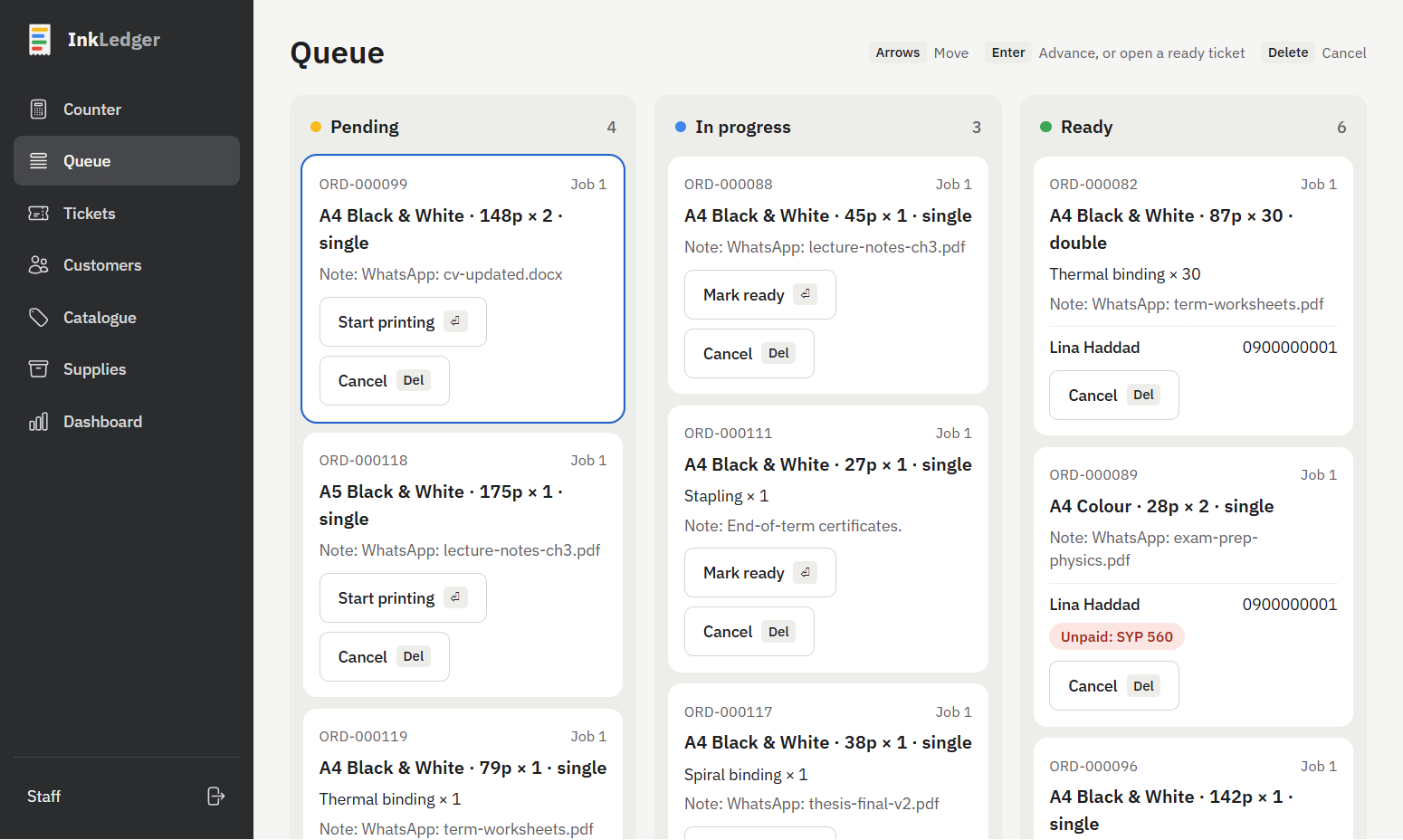
InkLedger's queue: jobs in three columns, pending, in progress and ready, each card with its customer and what to print.

3mboWaleed Printing · Damascus

Running at a real counter.

3mboWaleed Printing is a copy shop in Damascus, and it was the first to run on InkLedger. Before, every job went in a paper notebook, and files sent on WhatsApp waited in the chat until someone remembered them. Now the counter, the queue and the day's cash are all on one screen, in Syrian pounds.

“We used to write every job in a notebook and lose the ones that came on WhatsApp. Now anyone at the counter can see what's waiting, and at closing I already know what's in the drawer.”
Majd, 3mboWaleed Printing, Damascus
A ticket at the counter, in Syrian pounds.
The queue on a weekday morning: a school's batch, walk-ins and a business-card order.

See it on a sample shop.

Take a ticket, move it through the queue, and close the day. Nothing you do there touches a real shop.

Demo coming soon